
“What security is though is risk reduction, not risk elimination.”
WordPress Advanced Administration Handbook, “Hardening WordPress” (updated 14 Oct 2026)
Last updated: October 2026.
A new admin account you didn’t create, spam pages in Search Console, or an email from your host saying the account is suspended. That’s usually how a WordPress owner finds out. The first search is “is WordPress secure”, and the first answer most people reach for is another security plugin.
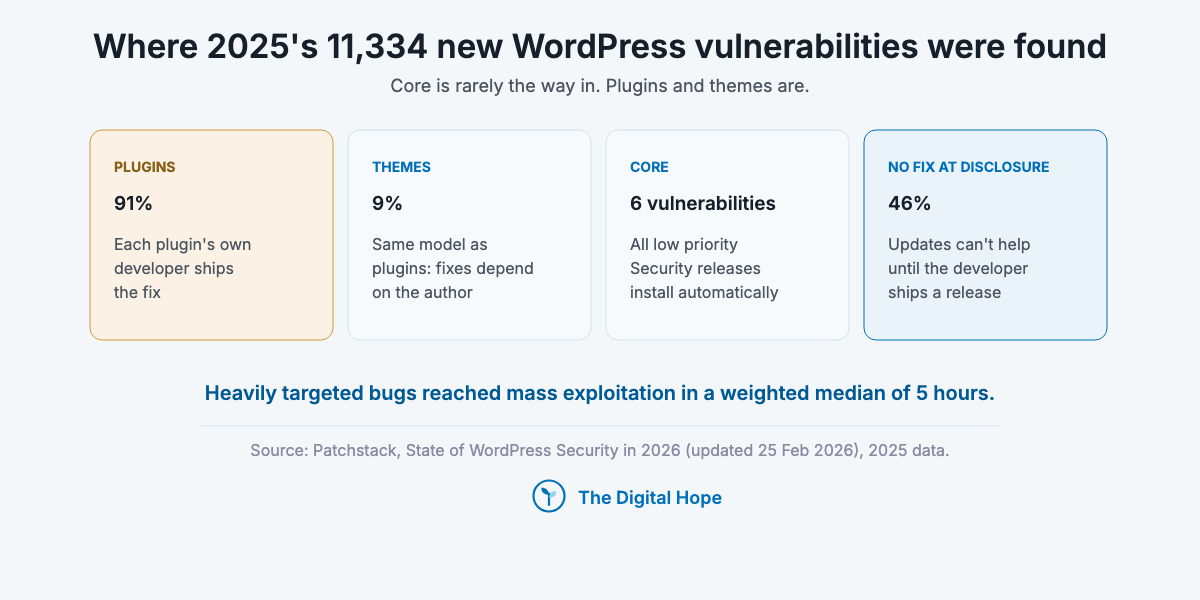
WordPress core is rarely the way in. The plugins and themes you add are. Patchstack’s “State of WordPress Security in 2026” report (updated 25 Feb 2026) counted 11,334 new vulnerabilities across the WordPress ecosystem in 2025, up 42% on 2024. 91% were in plugins, 9% in themes, and 6 in core, all six rated low priority. The software is maintained well. The risk is in what gets bolted on, how fast it’s patched, and who holds the keys.
This guide follows that risk to where it lives: core against plugins and themes, why “keep everything updated” leaves a gap, the doors attackers use, five controls in order of risk removed, what the named security plugins do and don’t cover, and the first moves if a site is already compromised.
How we know
Sources: WordPress.org’s own documentation (Hardening WordPress, updated 14 Oct 2026; “FAQ My site was hacked”, updated 26 Jul 2026; plugin and theme auto-updates; the application passwords integration guide; the MCP Adapter announcement, 17 Jul 2025), Google Search Console Help, and the WordPress.org plugin pages of seven security plugins, all checked 29 Oct 2026.
Data: Patchstack’s 2026 report, built from its vulnerability database, bug bounty programme and its own mitigation-rule telemetry for 2025. W3Techs usage data, 29 Oct 2026.
The limit: Patchstack sells virtual patching, and its exploitation timings come from its own customer base. Nobody publishes compromise rates by control, so nothing here shows that one control prevents a set share of hacks.
Quick Digest
– Core is not the weak point: 6 of 11,334 new WordPress vulnerabilities in 2025 were in core (Patchstack, Feb 2026).
– Updates leave a gap: 46% of those vulnerabilities had no fix when they became public.
– Attackers move in hours: the weighted median to mass exploitation of heavily targeted bugs was 5 hours.
– Five controls, in order: fewer plugins, close the patch gap, least-privilege logins with 2FA, restorable backups on decent hosting, and monitoring.
– Security plugins help with specific jobs, not “security”. Check where the firewall runs and how fresh its rules are.
– If you’re hacked: document, reset access, restore or reinstall clean, then request a review in Search Console.
Is WordPress secure? Core is, the add-ons are where it breaks
“While only the latest version of WordPress is officially supported, the Security Team also backports fixes to older versions as a courtesy”
WordPress.org, “Security” (last modified 24 Apr 2024)
WordPress core is well maintained, and most of the risk sits in third-party code. Core has a dedicated security team that ships fixes in point releases, and since WordPress 3.7, minor and security releases install automatically in the background (Hardening WordPress, updated 14 Oct 2026). Plugins and themes are written by thousands of separate developers, on separate release schedules, at separate levels of care.
Patchstack’s 2025 count shows where that lands. Of 11,334 new vulnerabilities, 4,124 (36%) were serious enough that Patchstack wrote a mitigation rule for them, and 1,966 (17%) carried a high severity score (State of WordPress Security in 2026, updated 25 Feb 2026). Broken access control was the most exploited category.
Premium code is not safer by default. Premium and freemium components made up 1,983 valid reports, 29% of the total, and Patchstack found three times as many known-exploited vulnerabilities in premium components as in free ones. Paying for a plugin buys support, not a security review.
| Layer | Who maintains it | 2025 vulnerabilities (Patchstack) | How fixes reach you |
|---|---|---|---|
| WordPress core | WordPress Security Team | 6, all low priority | Automatic minor releases since 3.7 |
| Plugins | Each plugin’s own developer | about 91% of 11,334 | Only when that developer ships a fix, and you install it |
| Themes | Each theme’s own developer | about 9% of 11,334 | Same as plugins |
| Hosting, logins, your computer | You and your host | not counted in the report | Your passwords, 2FA, host patching |
Why WordPress gets attacked at all is scale. W3Techs counts WordPress on 39.5% of all websites (29 Oct 2026), so one plugin bug can be scanned for across millions of sites at once. The Hardening guide says it plainly: many WordPress attacks are run by bots, not people picking a target.
The answer depends on what you run. If you run a brochure site with eight well-known plugins and no logged-in users, you carry far less risk than if you run a WooCommerce store or membership site with 40 plugins and thousands of accounts. Every account, every form and every plugin adds surface.
Core holds. The add-ons decide.
Quick Summary
Q: Is WordPress secure?
A: WordPress core is maintained by a dedicated security team and patches itself automatically for minor releases. Patchstack counted only 6 core vulnerabilities among 11,334 new WordPress-ecosystem vulnerabilities in 2025. The risk is in plugins (91%) and themes (9%), and in how quickly a site owner patches them.
Insight
WordPress’s own hardening guide frames security as reducing risk rather than removing it, and it traces most website compromises to the application layer, not the host’s servers. It names old and outdated plugins and software among the most common ways in, and notes that once a fix is published, the details needed to exploit the old version are almost certainly public.
WordPress Advanced Administration Handbook, Hardening WordPress (updated 14 Oct 2026)
Why “keep plugins updated” isn’t enough: the patch gap
“Older versions of WordPress are not maintained with security updates.”
WordPress Advanced Administration Handbook, Hardening WordPress (updated 14 Oct 2026)
Updating protects you only when there’s an update to install. In Patchstack’s 2025 data, 46% of vulnerabilities had no developer fix in time for public disclosure. For those, the best-patched site in the world was exposed until the plugin’s developer shipped a release, or the plugin was removed.
And the window is short. Patchstack measured a weighted median of 5 hours from disclosure to mass exploitation for heavily exploited vulnerabilities, and found about half of high-impact vulnerabilities exploited within 24 hours (2025 data, its own mitigation-rule telemetry). If you update weekly, the routine misses most of that window by design.
Hosting-level defences don’t close it on their own. In two penetration tests Patchstack ran against hosting providers’ standard defences, those defences blocked 12% of WordPress-specific attacks in one and 26% of all attacks in the other. Server firewalls are built for generic traffic. Plugin bugs are specific.
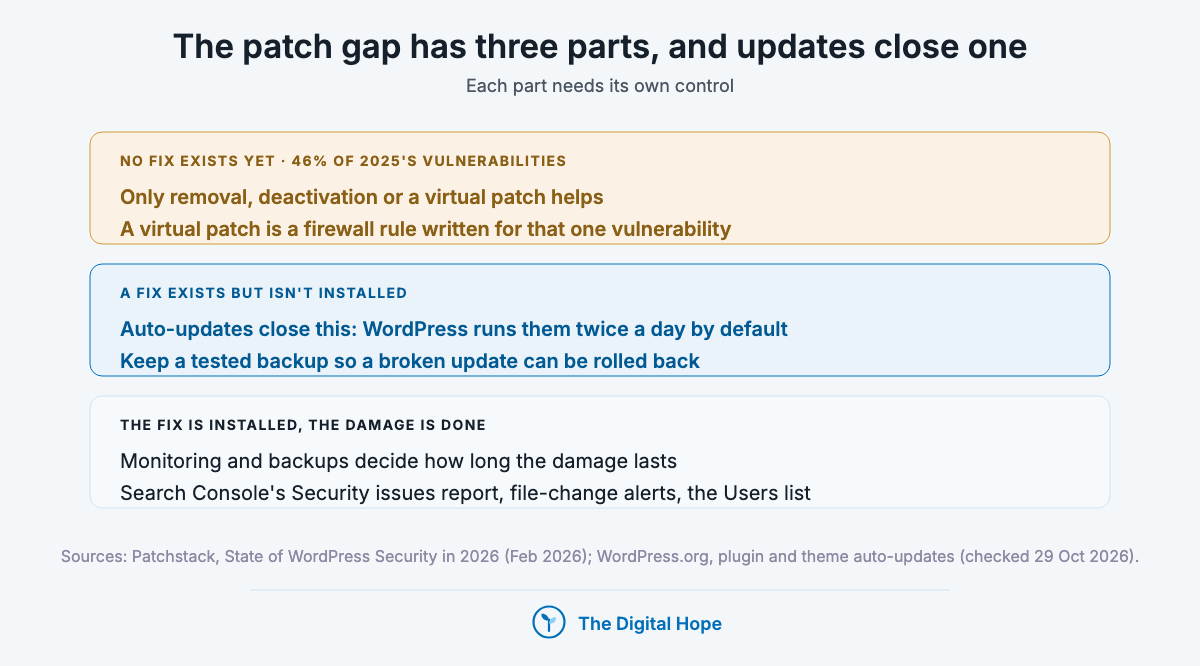
So the gap has three parts, and each needs its own control:
- No fix exists yet: only removal, deactivation or a virtual patch (a firewall rule written for that one vulnerability) helps.
- A fix exists but isn’t installed: auto-updates close this, if you can live with the occasional broken update.
- The fix is installed, the damage is done: monitoring and backups decide how long it lasts.
Updates cover one of three.
Quick Summary
Q: Why isn’t keeping WordPress plugins updated enough?
A: Because 46% of WordPress vulnerabilities disclosed in 2025 had no fix at the time of disclosure, and heavily targeted ones were mass-exploited in a median of 5 hours (Patchstack, Feb 2026). Updates protect you only after a fix exists. Fewer plugins, virtual patching and monitoring cover the rest.
Insight
Patchstack’s own recommendation from its 2025 data is not to rely on plugin updates alone, because many vulnerabilities lack timely fixes and attackers move within hours. It advises automated mitigation that can respond within about five hours of disclosure, and close watching in the first 24 hours after a vulnerability is published. Read it as a vendor’s advice, since virtual patching is what Patchstack sells.
Patchstack, State of WordPress Security in 2026 (updated 25 Feb 2026)
How attackers get in: four doors
“Many WordPress attacks are carried out autonomously by malicious software bots.”
WordPress Advanced Administration Handbook, Hardening WordPress (updated 14 Oct 2026)
Most compromises come through one of four doors, and only the first is a code bug. Knowing which door you’re guarding tells you which control to buy.
1. A vulnerable plugin or theme. Patchstack’s most exploited 2025 bugs include unauthenticated stored cross-site scripting, privilege escalation, unauthenticated file upload and unauthenticated plugin installation. “Unauthenticated” means the attacker needs no account at all.
2. Stolen or weak logins. Reused passwords, a contractor’s admin account nobody removed, or an FTP password sniffed from an infected laptop. WordPress.org’s hacked-site FAQ (updated 26 Jul 2026) tells owners to scan their own computer too, because infections often start there.
3. The host and neighbours. On shared hosting, a compromise can reach beyond one site, and a site sending spam can get the server’s IP address blacklisted for email (same FAQ).
4. Integration credentials. Every tool that writes to WordPress, from a backup service to an AI agent, holds a credential. Application passwords, added in WordPress 5.6, authenticate requests to the REST API and XML-RPC (Make WordPress Core integration guide, 5 Nov 2020). WordPress’s MCP Adapter, announced 17 Jul 2025, uses those same application passwords so AI agents can call site actions, with the user’s capabilities deciding what each agent may do.
The fourth door is the newest and the least watched. An application password can’t log into wp-admin, but it acts with the full permissions of the user it belongs to, and it works until someone revokes it. An agent connected through an administrator’s application password can do anything that administrator can.
Which door matters most depends on the site:
- Solo owner on shared hosting: doors 1 and 2. Fewer plugins and 2FA cover most of it.
- Agency or in-house team running many sites: door 2 and door 4. Ex-staff accounts and forgotten integrations pile up across sites.
- Store or membership site: door 1 is bigger, because every logged-in customer is someone a privilege-escalation bug can turn into an admin.
Guard the door you have.
Quick Summary
Q: How do WordPress sites get hacked?
A: Through four main doors: a vulnerable plugin or theme (often exploitable without an account), stolen or weak logins, the hosting environment, and credentials held by integrations such as application passwords used by tools and AI agents. Bots scan for all four automatically.
Insight
WordPress’s MCP Adapter, announced by the WordPress AI team, exposes site actions to AI agents as tools. For authentication it uses WordPress’s built-in application passwords, and for authorisation it uses the existing capabilities system. In practice that means an agent can do exactly what the WordPress user behind its credential can do, so the user you connect it as is the security decision.
WordPress.org AI team, “MCP Adapter” (17 Jul 2025)
Understanding where the risk sits is the easy half. Removing it takes five controls, in a fixed order.
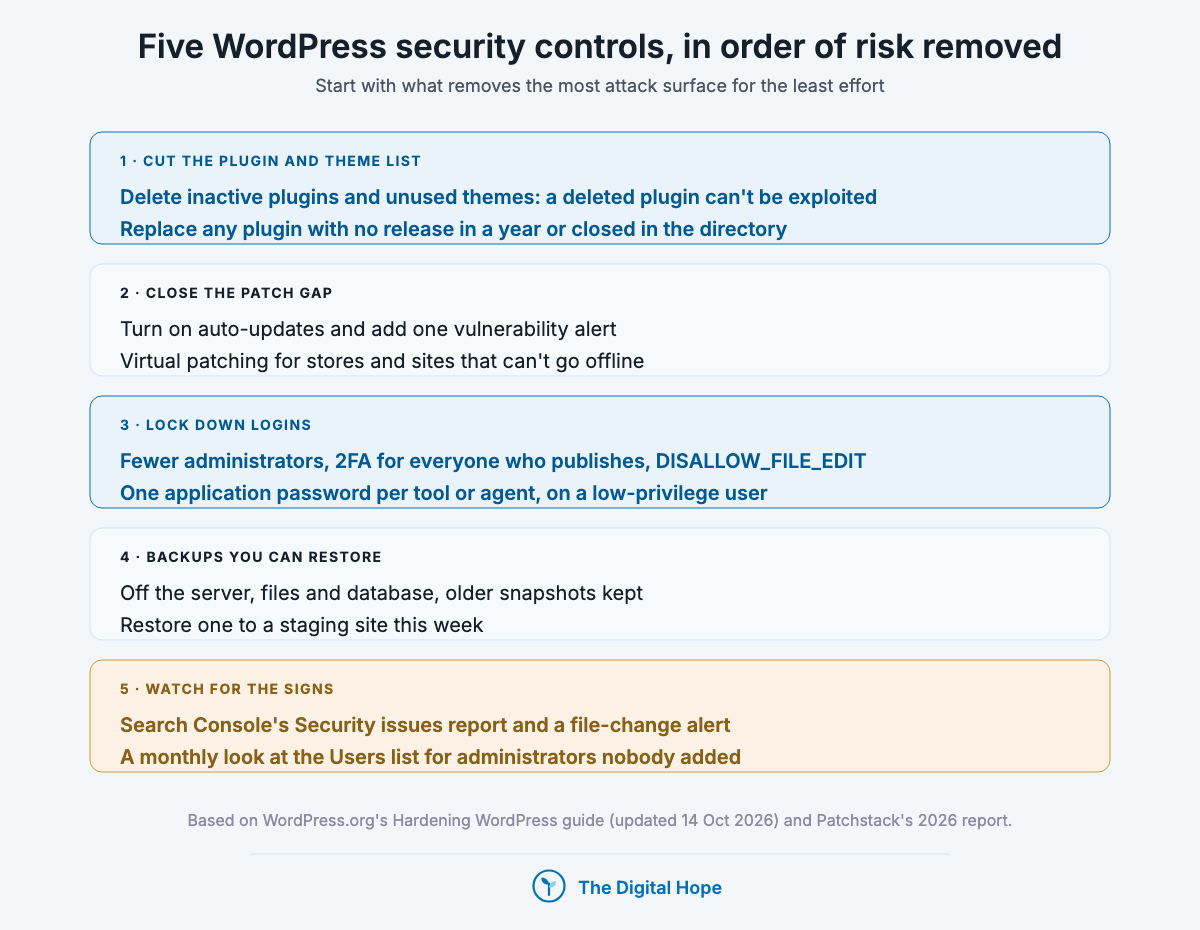
How to secure a WordPress site: five controls in order of risk removed
Start with the control that removes the most attack surface for the least effort, and work down. Each step below has a first action you can take in the dashboard today, a note on when to skip it, and the questions to answer before moving on.
1. Cut the plugin and theme list to what you use
First action: open Plugins, filter by Inactive, and delete every inactive plugin you don’t plan to use this month. Then do the same under Appearance, Themes, keeping one default theme as a fallback.
Why it’s first: 91% of 2025’s new vulnerabilities were in plugins. A deleted plugin can’t be exploited, and an inactive one still sits on the server. Fewer plugins also means fewer updates to watch and fewer authors to trust.
For each plugin that stays, check its WordPress.org page: when it was last updated, how many active installs it has, and whether the directory shows it as closed. A plugin with no release in a year, or one the directory has closed, is a candidate for replacement.
Skip this step only when the site is a managed build where every plugin is pinned and reviewed by a developer.
- Which plugins could you delete today without anyone noticing?
- Which plugin does one small job that two lines of code or a setting could do?
- Which plugins came from outside WordPress.org, and who would you contact about a bug in them?
- Is any plugin abandoned, closed, or bought by a new owner recently?
Nobody gets credit for a long plugin list.
2. Close the patch gap: auto-updates, alerts and virtual patching
First action: on the Plugins screen, select all plugins and use the bulk action Enable Auto-updates. WordPress has let administrators opt in plugin by plugin and theme by theme since version 5.5, runs auto-updates twice a day by default, and emails you after each attempt (WordPress.org, plugin and theme auto-updates).
Then cover the 46% with no fix yet. That takes a vulnerability alert (so you know the day a plugin you run is affected) and, if you run a site that can’t afford to wait for a developer, a virtual patch: a firewall rule that blocks that one exploit without changing the plugin’s code.
The condition:
- Brochure site, few plugins: auto-updates plus a free vulnerability alert is proportionate. When an alert has no fix, deactivate the plugin.
- Store, membership site or client sites: add virtual patching or a firewall with real-time rules, because deactivating checkout or login for a week isn’t an option.
- Sites with fragile customisations: auto-update on staging first, or exclude the two or three plugins that break things and patch those by hand within 24 hours.
Turn on auto-updates only when you can roll back. WordPress.org’s own auto-update documentation says to confirm a working backup first.
- Which plugins are excluded from auto-updates, and who patches them by hand?
- How would you hear about a vulnerability in a plugin you run, today?
- If a plugin had no fix for two weeks, would you deactivate it, or does something block it?
The broken update is the cheaper failure.
3. Lock down logins: least privilege, 2FA and credentials you can revoke
First action: open Users, sort by role, and downgrade or delete every Administrator who doesn’t need to install plugins or change settings. Writers get Author or Editor. Ex-staff and old agencies get deleted, with their content reassigned.
Then add a second factor for every account that can publish. WordPress’s Hardening guide recommends two-step authentication, but core doesn’t include it. The Two Factor plugin, published on WordPress.org by a community of WordPress contributors, supports authenticator apps, backup codes and email codes (version 0.17.0, 25 Sep 2026). If you pick a security plugin below that includes 2FA, don’t run a second one.
Close the dashboard code editor. Adding `define( ‘DISALLOW_FILE_EDIT’, true );` to wp-config.php removes the built-in theme and plugin file editor. The Hardening guide’s reason: it is “often the first tool an attacker will use if able to login, since it allows code execution.”
Give every integration its own credential. Under Users, Profile, create one application password per tool or agent, named after it, so you can revoke one without breaking the rest. Connect agents and automations as a user with the lowest role that does the job, never as your own administrator account.
Skip the role audit only when you’re the only user. Do the 2FA and the code editor anyway.
- How many Administrator accounts exist, and could you name the person behind each?
- Which application passwords exist, and does each one map to a tool still in use?
- Does any automation or AI agent log in as an administrator?
- Are hosting, SFTP and database passwords unique and stored in a password manager?
Every admin account is a door.
4. Choose hosting and backups you can restore from
First action: download your most recent backup and restore it to a staging site this week. A backup nobody has restored is a guess.
What makes a backup useful after a hack: it’s stored off the server (an attacker with file access can delete local copies), it includes both files and the database, and you keep older snapshots. The Hardening guide’s point is that a compromise can go unnoticed for a while, and only pre-compromise backups help you rebuild.
What to ask a host: whether it patches PHP and server software for you, isolates sites from each other on shared plans, keeps its own backups and for how long, and what happens when it detects malware (clean-up, or suspension). Don’t count the host’s firewall as your plugin defence: in Patchstack’s two hosting pentests, standard host defences blocked 12% and 26% of attacks.
The condition is your hosting budget: a managed WordPress host usually handles server patching, backups and isolation, and cheap shared hosting often leaves all three to you.
- Where is the latest backup stored, and could the site itself delete it?
- How many days back can you restore?
- When did anyone last test a restore?
- Does your host suspend, clean or alert when it finds malware?
Test the restore, not the backup.
5. Watch for the signs: Search Console, file changes and new users
First action: verify the site in Google Search Console and check the Security issues report. Google lists four kinds of hacked content there: malware, code injection, content injection (spammy links or text) and URL injection (new spam pages created on your site) (Search Console Help, Security issues report, checked 29 Oct 2026).
Then add two cheap checks. A file-change alert (several security plugins include one) tells you when core or plugin files change outside an update. A monthly look at the Users list catches the admin account an attacker added.
Skip nothing here. Monitoring is the only control that works after the other four fail.
- Who receives Search Console’s security emails, and do they read them?
- Would you know within a day if a new administrator appeared?
- Which pages does `site:yourdomain.com` show that you didn’t publish?
The first sign is usually in Search Console.
Quick Summary
Q: How do you secure a WordPress site?
A: In order of risk removed: delete plugins and themes you don’t use, turn on auto-updates and add vulnerability alerts or virtual patching for unfixed bugs, cut administrator accounts and add 2FA, keep off-server backups you’ve tested, and watch Search Console’s Security issues report and your user list.
Insight
WordPress.org’s hardening guidance pairs prevention with detection. It recommends keeping a set of regularly timed snapshots of the whole installation, so there are pre-compromise backups to rebuild from, and monitoring logs and file changes, because faster detection lets an owner react, find out what happened and recover. Prevention reduces the odds. Detection limits the damage.
WordPress Advanced Administration Handbook, Hardening WordPress (updated 14 Oct 2026)
What security plugins do, and what they don’t
“you can also install a WAF (web firewall) at your web server to filter content before it is processed by WordPress.”
WordPress Advanced Administration Handbook, Hardening WordPress (updated 14 Oct 2026)
A security plugin is a bundle of separate jobs, and the free versions differ most in the job that matters for the patch gap: how fresh the firewall rules are. Judge each one on five criteria, not on its feature count.
- Where the firewall runs: inside WordPress (a plugin firewall loads with PHP), at the server, or in the cloud in front of the site (DNS points through the vendor). Earlier is better, and cloud firewalls cost money.
- How fresh the rules are: a rule that arrives after the 5-hour median exploitation window protects you from the next bot, not the first.
- What it scans for: known-vulnerable versions, malware in files, or both. These are different jobs.
- Login protection: 2FA, login limits and passkeys, which you may already have from step 3.
- Overlap: two firewalls or two 2FA systems in one site add code and conflicts, not protection.
Seven plugins cover most of what site owners use. The table is not a ranking. Free and paid features and installs are from each plugin’s WordPress.org page, checked 29 Oct 2026, and change often.
| Plugin | What the free version does | What needs a paid plan | Active installs |
|---|---|---|---|
| Wordfence | Plugin firewall, malware scanner that compares files with WordPress.org, login limits, 2FA and passkeys, live traffic | Real-time firewall rules and malware signatures (free version “is delayed by 30 days”), real-time IP blocklist, country blocking, audit log | 5+ million |
| All-In-One Security (AIOS) | Login lockdown, 2FA by role, PHP and .htaccess firewall rules (.htaccess rules don’t apply on Nginx or IIS) | Malware scanning, uptime monitoring, country blocking | 1+ million |
| Kadence Security (formerly Solid Security, formerly iThemes Security) | 2FA, brute force protection, vulnerability scan four times a day, file change detection, database backups | Virtual patching through Patchstack, hourly scans, passwordless login, user logging | 700,000+ |
| Sucuri Security | Audit log, file integrity monitoring, remote malware scan, blocklist monitoring, hardening options, post-hack actions | The cloud firewall (WAF), brute force and DDoS protection, vulnerability scanning | 600,000+ |
| Patchstack | Vulnerability alerts for plugins, themes and core, auto-update for vulnerable plugins only | Virtual patching (per site or on paid plans), firewall rules, 2FA | 100,000+ |
| Jetpack Protect | Daily scan for known-vulnerable versions using the WPScan database | Malware scanning and a firewall with automatic rule updates (Jetpack Scan) | 100,000+ |
| Two Factor | 2FA only: authenticator app, backup codes, email codes | Nothing (passkeys and hardware keys need a separate WebAuthn provider plugin) | 100,000+ |
Which combination fits, by condition:
- Brochure or blog site, one owner: a vulnerability alert (Patchstack free or Jetpack Protect) plus Two Factor, or one all-in-one plugin with its 2FA switched on. Not both.
- Store, membership site or lead-generation site that can’t go offline: a firewall with real-time rules or virtual patching, paid. A 30-day-old free ruleset is too slow for a site that takes payments.
- Agency managing many sites: one vulnerability feed across all sites and one firewall vendor, so alerts come from one place and nobody has to reconcile three dashboards.
What no security plugin covers: an administrator account that shouldn’t exist, a reused hosting password, an untested backup, an integration connected as an admin, or a plugin you didn’t need. Every security plugin is also a plugin, with its own code and its own vulnerabilities. Install one to do a job you’ve named.
One plugin per job.
Quick Summary
Q: Which WordPress security plugin should I use?
A: Pick by the job, not the brand. For the patch gap you need vulnerability alerts and, on sites that can’t go offline, real-time firewall rules or virtual patching, which are usually paid (Wordfence’s free rules are delayed 30 days). For logins, one 2FA plugin. Run one plugin per job and avoid overlapping firewalls.
Insight
WordPress’s hardening guide treats a firewall as one layer, not the defence. It describes a web application firewall installed at the web server to filter requests before WordPress processes them, alongside keeping software updated, using plugins only from trusted sources, removing unused ones and monitoring files. A plugin firewall runs later in that chain, after WordPress has started loading.
WordPress Advanced Administration Handbook, Hardening WordPress (updated 14 Oct 2026)
If the site is already hacked: the first moves, in order
“Remember, you need to change the passwords for your site after making sure your site is clean.”
WordPress.org Documentation, “FAQ My site was hacked” (updated 26 Jul 2026)
Recovery is document, contain, clean, then close the door it came through. WordPress.org’s hacked-site FAQ (updated 26 Jul 2026) sets out the sequence. If you do it out of order, such as restoring before changing passwords, it often means a second infection a week later.
1. Document what you see, with times: the symptom, recent plugin installs or theme changes, and your host details. This becomes the incident record whether you clean it yourself or hire someone.
2. Scan the site and your own computer. Use an application scanner and a remote scanner, because they look for different things. Infections often start on a local machine that holds SFTP or wp-admin logins.
3. Talk to your host, especially on shared hosting. It can confirm whether other sites or the server are affected.
4. Reset all access. Force a password reset for every user, starting with administrators, and change SFTP, hosting panel and database passwords. Generate new secret keys in wp-config.php, which logs out everyone still signed in. Revoke every application password.
5. Take one more snapshot, even infected, so you have a reference if cleaning breaks something.
6. Restore a clean backup, or clean in place. Replace /wp-admin and /wp-includes with fresh copies of the same WordPress version over SFTP, not with the dashboard’s reinstall, because installers overwrite files and leave added ones behind. Check .htaccess, index.php, header.php, footer.php and functions.php, which are the most commonly modified.
7. Update everything, then change the passwords again once the site is clean.
8. Find the way in. Without knowing which door was used, the same door stays open.
Then tell Google. If Search Console’s Security issues report lists problems, fix every listed issue on every affected page, then select Request Review with an explanation of the problem, the fix and the result. Google says reviews for hacked-content issues take a few days to a few weeks, and you shouldn’t resubmit while one is pending (Search Console Help, checked 29 Oct 2026).
Rankings are a separate job. Removing injected spam pages, handling the URLs Google already indexed, and watching traffic recover is covered in our technical SEO guide, which owns crawling, indexing and recovery work on any CMS.
When to hand it off: if you run a site that takes payments or stores customer data, or the infection comes back after a clean, budget for professional incident response. Depending on your jurisdiction and what was accessed, a breach of personal data can also carry notification duties, so check them with whoever handles your legal obligations.
Clean first, then change the locks again.
Quick Summary
Q: What should I do if my WordPress site is hacked?
A: Document the symptoms, scan the site and your own computer, check with your host, reset every password and generate new secret keys, snapshot the infected site, restore a clean backup or replace core files, update everything, change passwords again, and find how they got in. Then request a review in Search Console, which can take days to weeks.
Insight
Google’s Search Console groups hacked content into four types: malware that harms visitors’ devices, code injection such as hidden redirects, content injection that adds spammy links or text, and URL injection that creates new spam pages on your site. Pages affected can carry warnings in search results or the browser until every listed issue is fixed and a review is approved.
Google Search Console Help, Security issues report (checked 29 Oct 2026)
What stopped being true
WordPress security advice that was once common and isn’t accurate now. Each row has a source you can check.
| What | When | Source |
|---|---|---|
| WordPress core is the weak point | 6 of 11,334 new ecosystem vulnerabilities in 2025 were in core | Patchstack, State of WordPress Security in 2026 (updated 25 Feb 2026) |
| Keeping plugins updated is enough | 46% of 2025’s vulnerabilities had no fix at disclosure | Patchstack, same report |
| Plugin and theme updates have to be run by hand | Opt-in auto-updates per plugin and theme since WordPress 5.5 (2020), twice a day by default | WordPress.org documentation, plugin and theme auto-updates |
| Integrations need your admin password | Per-integration, revocable application passwords since WordPress 5.6 (2020) | Make WordPress Core, application passwords integration guide (5 Nov 2020) |
| “iThemes Security” as the plugin’s name | Renamed Solid Security in 2023, now listed as Kadence Security | WordPress.org plugin page, checked 29 Oct 2026 |
| FIDO U2F keys in the Two Factor plugin | Removed after browser support ended, passkeys moved to a separate WebAuthn provider plugin | WordPress.org Two Factor plugin page (v0.17.0, 25 Sep 2026) |
| “WordPress powers 43% of the web” | W3Techs shows 39.5% of all websites | W3Techs, 29 Oct 2026 |
Pulling it all together
Cut the list: this week, delete every inactive plugin and unused theme, and flag any plugin with no update in a year.
Close the gap: turn on auto-updates for every plugin you can, and set up one vulnerability alert so you hear about unfixed bugs the day they’re published.
Lock the doors: reduce administrators to the people who need the role, add 2FA for everyone who publishes, set DISALLOW_FILE_EDIT, and give every tool or agent its own application password on a low-privilege user.
Prove recovery: restore last night’s backup to staging and confirm older snapshots exist off the server.
Watch: add the site to Search Console, make sure someone reads its security emails, and check the Users list monthly.
Then the paid layer, only when the site can’t go offline: real-time firewall rules or virtual patching for a store, membership site or client portfolio.
FAQ
Is WordPress safe to use for a business website?
Yes, if someone owns maintenance. Core is patched by a dedicated security team and updates itself for minor releases. The risk comes from plugins, themes and logins, so a business site needs an owner who limits plugins, keeps them updated and controls who has admin access.
Is WordPress less secure than Wix, Squarespace or Shopify?
It’s a different model, not a weaker core. On hosted builders the vendor runs and patches everything, and you can’t add arbitrary code. On WordPress you choose your plugins and host, which brings flexibility and the responsibility to patch. Platform choice is covered in advantages of WordPress.
Do I need a security plugin?
Not by default. Myth: a security plugin makes a site secure. Every security plugin is also a plugin with its own code. You need the jobs some of them do: vulnerability alerts, 2FA, and on sites that can’t go offline, a firewall with current rules. One plugin per job, chosen for that job.
Are premium plugins safer than free ones?
Not on the evidence. Patchstack’s 2025 data had premium and freemium components at 29% of valid vulnerability reports, with three times as many known-exploited vulnerabilities as free components. Judge any plugin by its update history and developer, not its price.
Does hiding the login URL or changing the admin username stop attacks?
It cuts noise from bots in your logs, not the risk. Myth: obscurity is protection. Most exploited 2025 vulnerabilities needed no login at all. Strong unique passwords, 2FA and fewer administrators protect the login, and patching protects everything else.
In a nutshell
The honest timeline: the first four controls take an afternoon on a small site and a few days across an agency’s portfolio. After that, security is a weekly habit, not a project, because new vulnerabilities in plugins you run will keep arriving, and attackers act on them within hours. A cleaned-up hacked site can take weeks to clear Google’s review.
When this guide doesn’t apply: if you have no one to maintain the site and don’t need custom plugins, a hosted builder that patches for you may be the safer choice. And if the site is already compromised and takes payments, the steps above are where an incident responder starts, not a replacement for one.
About this article

Written by
Sai Subramaniam
SEO, GEO and Paid Ads Manager · 8+ years in growth marketing
I have run SEO, paid media and ABM for B2B AI companies, consumer apps and live-entertainment brands, from a solo operator at an AI infrastructure company to a team of 20 recovering a million-visitor site after a Google update. I write these guides from that work, and every number in them carries its source.
See my portfolioConnect on LinkedInHow this one was checked. Every number traces to a named source with its dataset and period, and every platform feature, policy or limit cites the platform’s own documentation with the date it was verified. Where the author’s own results appear, they are labelled as one account’s results, with the budget and context, not as a rule.
No affiliate links and no paid placements. Tools are named because they are what practitioners use, not because anyone paid to appear here.
Reviewed: October 2026. Ad platforms and search features change every few months; anything we could not verify at the time of writing is marked as unverified rather than turned into a number.
Corrections. If something here is wrong or has changed since, we would rather know. Corrections are made in place, with a note saying what changed.